Transparent Thumbnails
A transparent thumbnail only contains the asset. The background, the floor and the sky are removed, so the thumbnail can be placed on any UI.
Enable Custom Depth-Stencil Pass
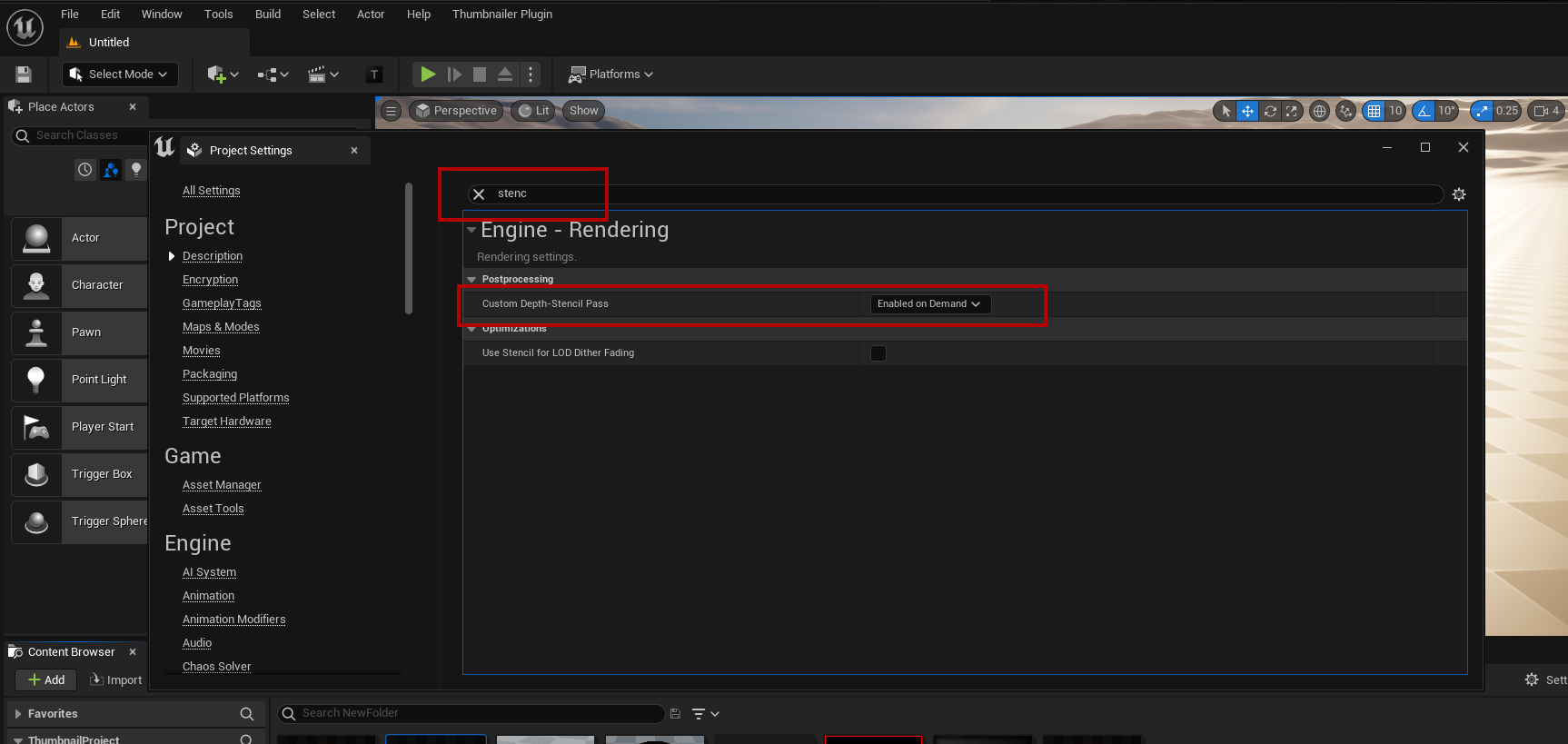
Transparent thumbnails use the custom depth pass to find the asset. Open Edit → Project Settings → Engine → Rendering and set Custom Depth-Stencil Pass to Enabled on Demand, or Enabled with Stencil.
Turn on Transparent
- Check Transparent under Output in the right panel. It is the same setting as Transparent Thumbnail under Settings → Output.
- The Transparent badge is shown in the upper left corner of the preview.
The preview still shows the background. It is removed when you capture.
The result
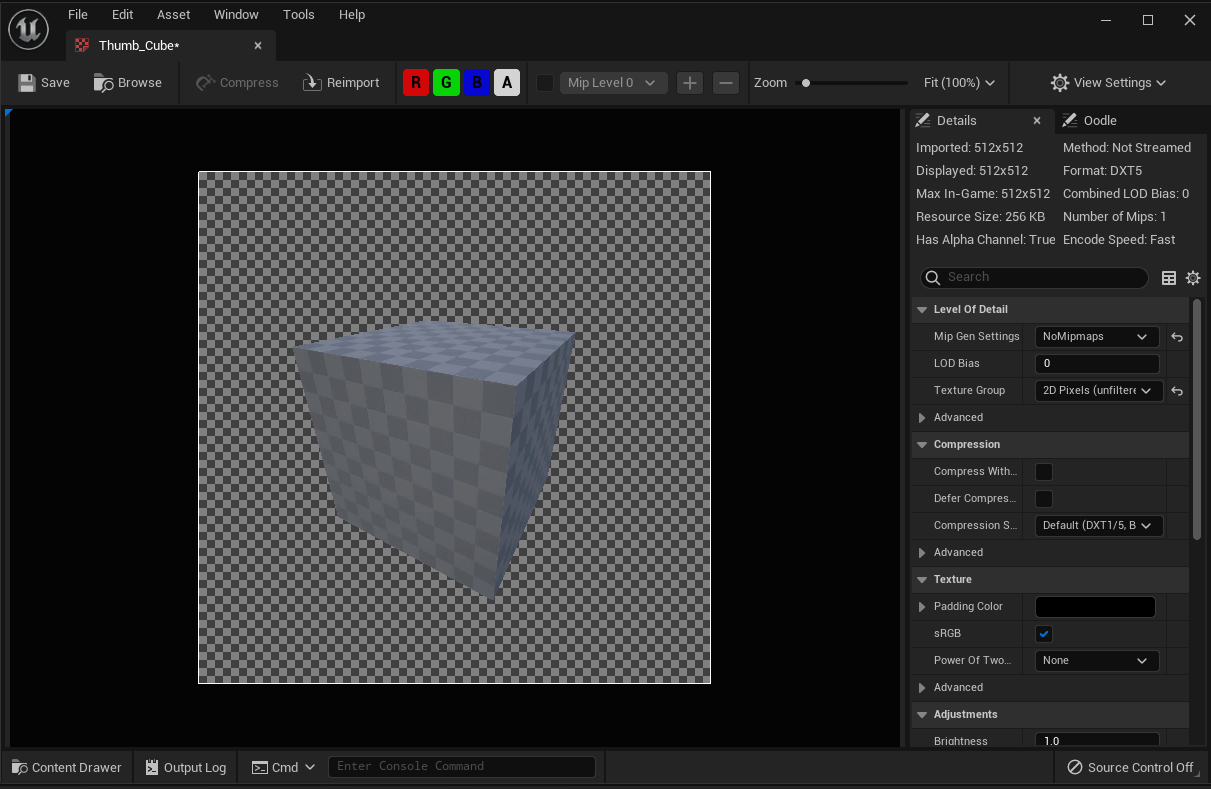
The thumbnail is imported as a texture with an alpha channel.
Actors
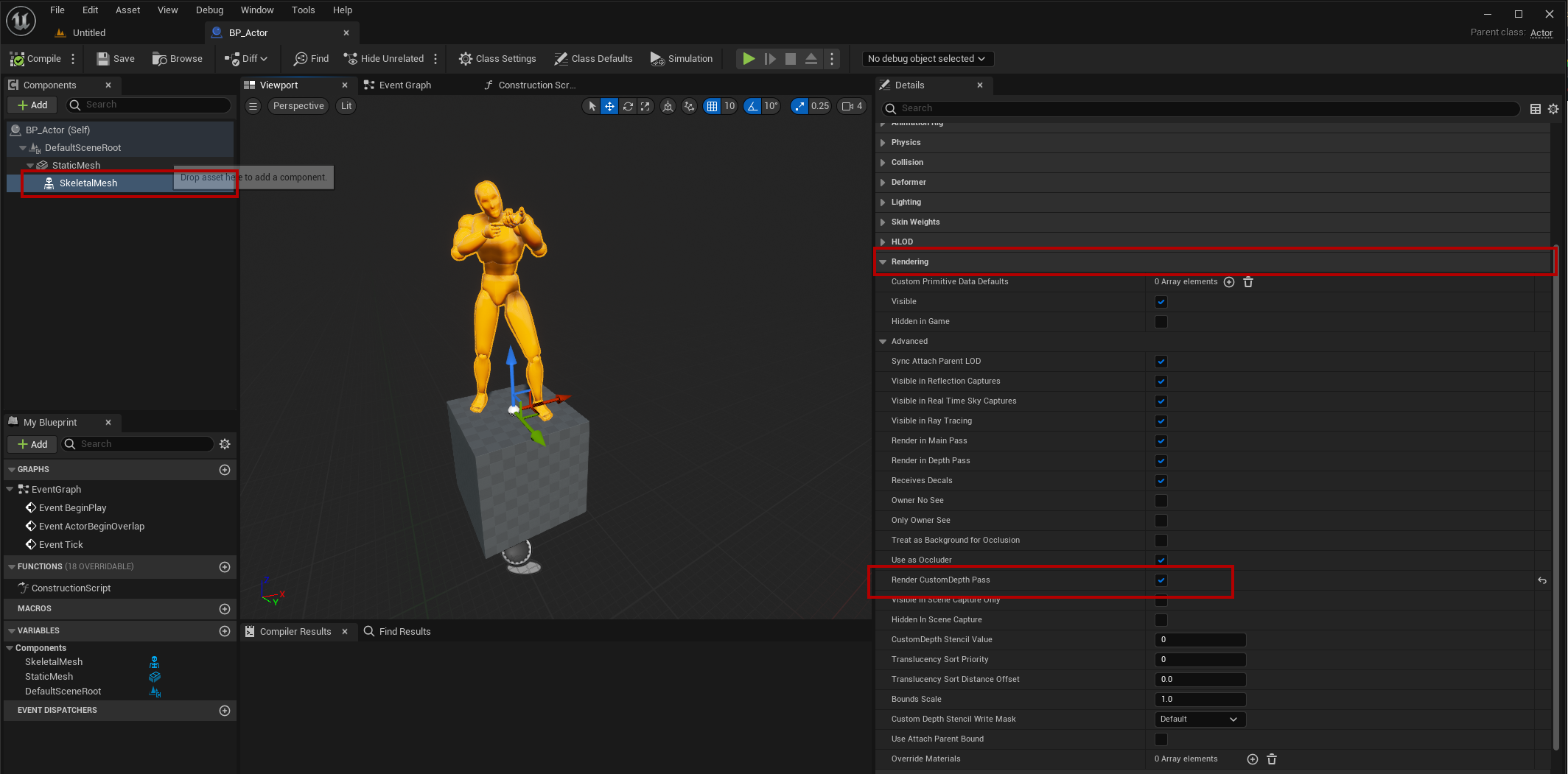
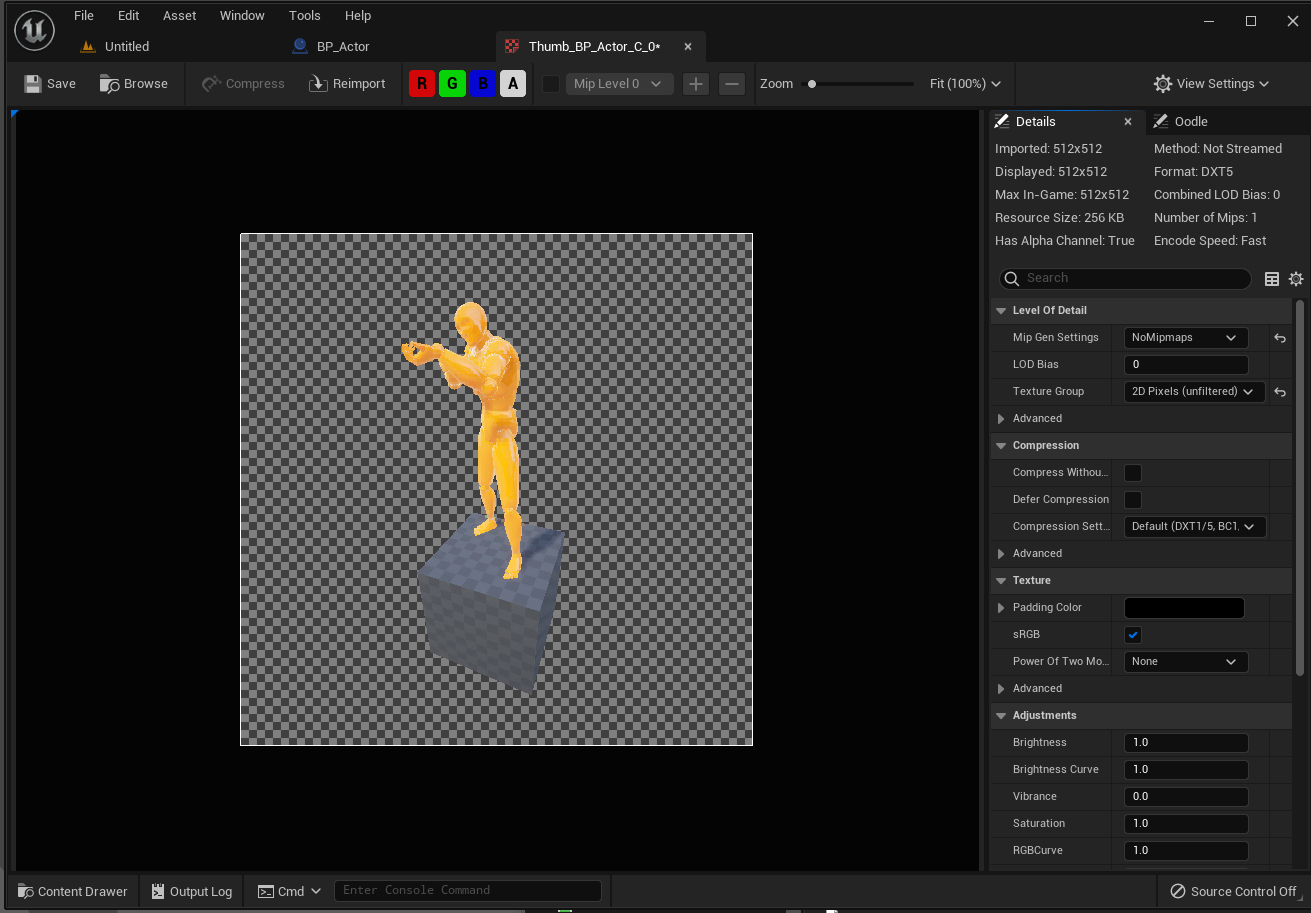
Static and skeletal meshes are set up by the plugin. An actor Blueprint needs one change: every component that should be visible in the thumbnail must have Render CustomDepth Pass turned on. Components without it are removed together with the background.
- Open the actor Blueprint, select each mesh component and turn on Rendering → Render CustomDepth Pass.
Nanite
Transparent thumbnails don't work with Nanite meshes. A red warning is shown below the preview when the selected static mesh has Nanite turned on.
- Open the static mesh and turn off Nanite Support, or capture it without a transparent background.
HDR
Transparent backgrounds don't work when the editor renders in HDR, for example when HDR display output is turned on. The HDR badge is shown in the upper right corner of the preview when this is the case. Turn off HDR display output to capture transparent thumbnails.