Getting Started
The Thumbnailer Window
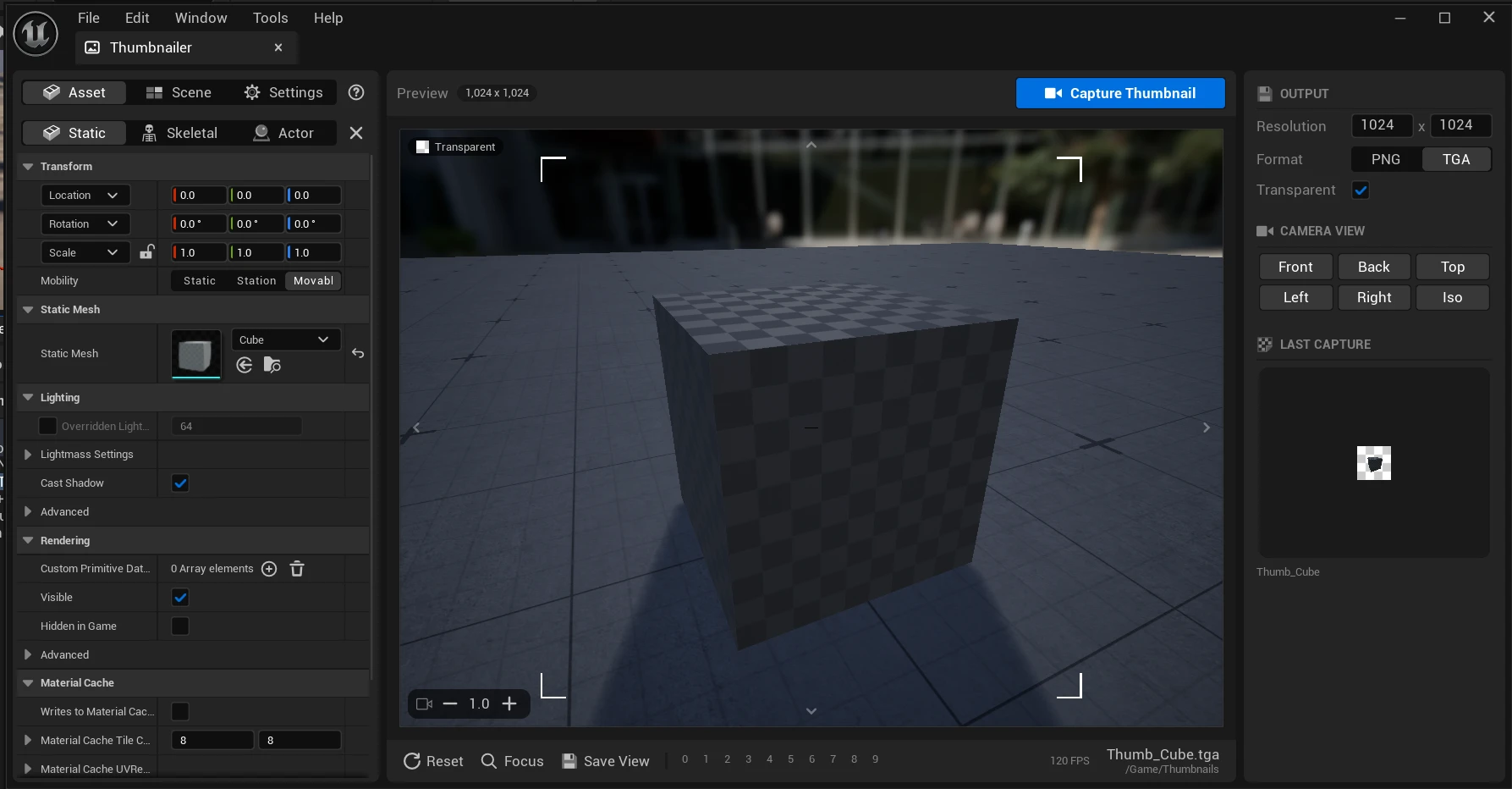
The window has three panels. The left panel picks what to capture, the center panel shows the preview, and the right panel holds the output options.
Left panel
The tabs at the top switch between three pages. The ? button opens the key bindings. See Keyboard Shortcuts.
| Tab | Description |
|---|---|
| Asset | Pick the asset type (Static, Skeletal or Actor) and the asset to capture. The details panel lets you change the transform and the rendering options of the preview mesh, for example its materials. |
| Scene | Lighting, environment, floor and post processing of the preview scene. See Preview Scene. |
| Settings | All plugin settings. See Settings. |
Preview
- The header shows the thumbnail resolution and the Capture Thumbnail button.
- The preview has the same aspect ratio as the thumbnail, so what you see is what is captured.
- The frame corners and the crosshair help you center the asset. They are not part of the capture.
- The arrows on the edges rotate the camera, and the − / + buttons in the lower left change the camera speed.
Overlay badges
| Badge | Meaning |
|---|---|
| Transparent | Transparent background is on. The preview still shows the background, it is removed when you capture. |
| HDR | The editor renders in HDR. Captures are saved as EXR and transparent backgrounds don't work. See FAQ. |
A red warning below the preview is shown when a transparent capture is set up for a mesh with Nanite. See Transparent Thumbnails.
Bottom bar
| Control | Description |
|---|---|
| Reset | Moves the camera to the default view (R). |
| Focus | Frames the current asset (F). |
| Save View | Saves the current view as the default view that Reset returns to. |
| 0–9 | Camera bookmarks. Click to move the camera to a bookmark, Ctrl+click to save the current view to it. |
The lower right shows the frame rate, the file name of the next capture and the folder it is imported to.
Right panel
| Section | Description |
|---|---|
| Output | Resolution, format (PNG or TGA) and transparent background. See Output and Naming. |
| Camera View | Frames the asset from the front, back, top, left, right or an isometric angle. The view the camera is in is highlighted. |
| Last Capture | The latest thumbnail, shown on a checkerboard so transparency is visible. Click it to open a larger preview. Below it are the name and size of the texture and buttons to open it in the texture editor, show it in the Content Browser, and copy its object path. |