Getting Started
Capturing a Thumbnail
Opening the Thumbnailer window
There are two ways to open the window.
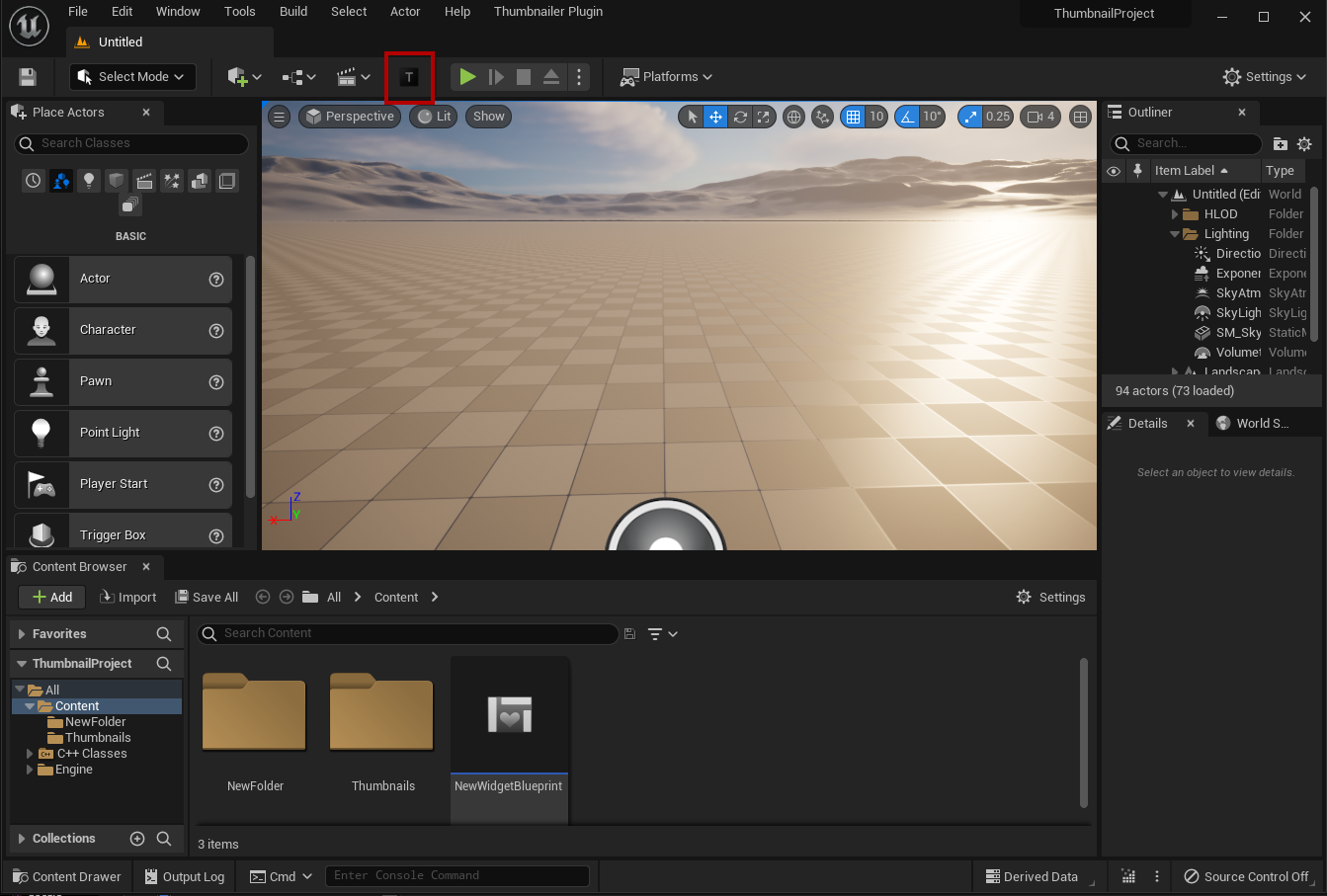
Toolbar
- Click the Thumbnailer button on the main toolbar of the level editor.
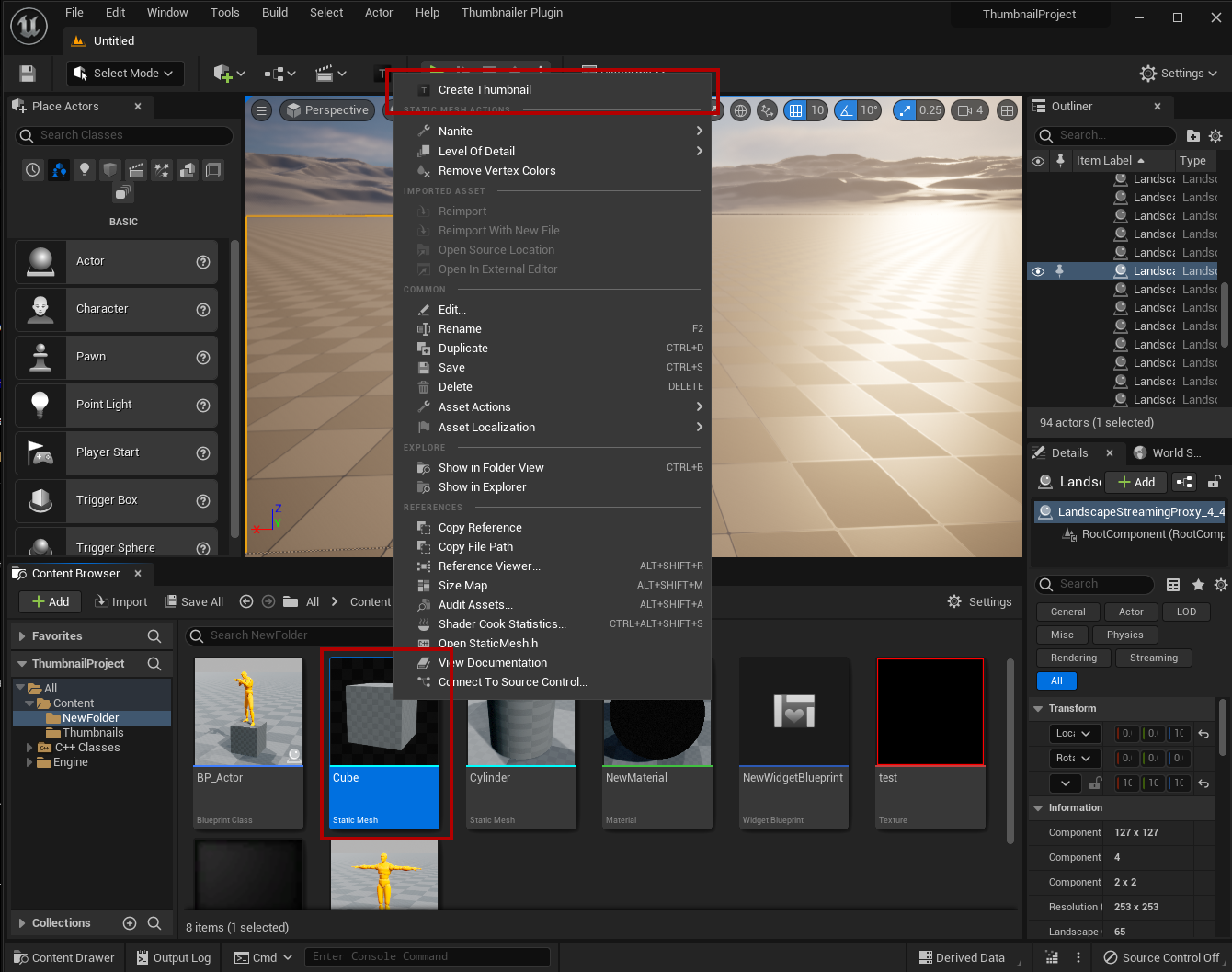
Content Browser
- Right-click a Static Mesh, Skeletal Mesh or Actor Blueprint in the Content Browser and select Create Thumbnail.
- The window opens with that asset already selected. This only works with one selected asset.
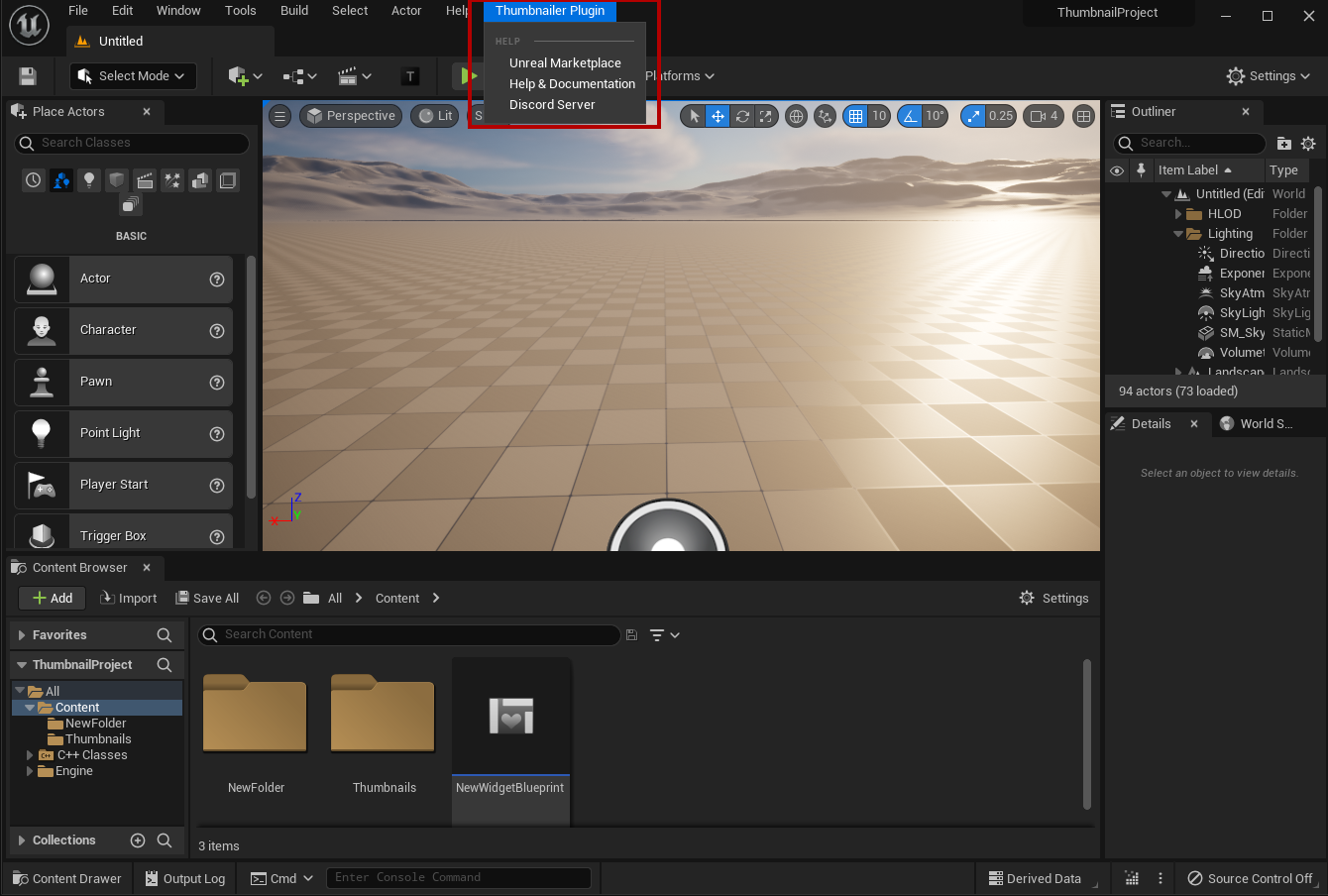
Thumbnailer Plugin menu
The Thumbnailer Plugin menu in the level editor's main menu has links to the Fab page, this documentation and the Discord server.
Capture your first thumbnail
- On the Asset tab, pick the asset type: Static, Skeletal or Actor.
- Select the mesh or the actor class in the details panel below. You can skip this step if you opened the window with Create Thumbnail.
- Frame the asset in the preview. Click Focus or press
Fto frame it, or use one of the Camera View buttons on the right. See Camera and Framing. - Set the Resolution and Format under Output on the right.
- Click Capture Thumbnail or press
C.
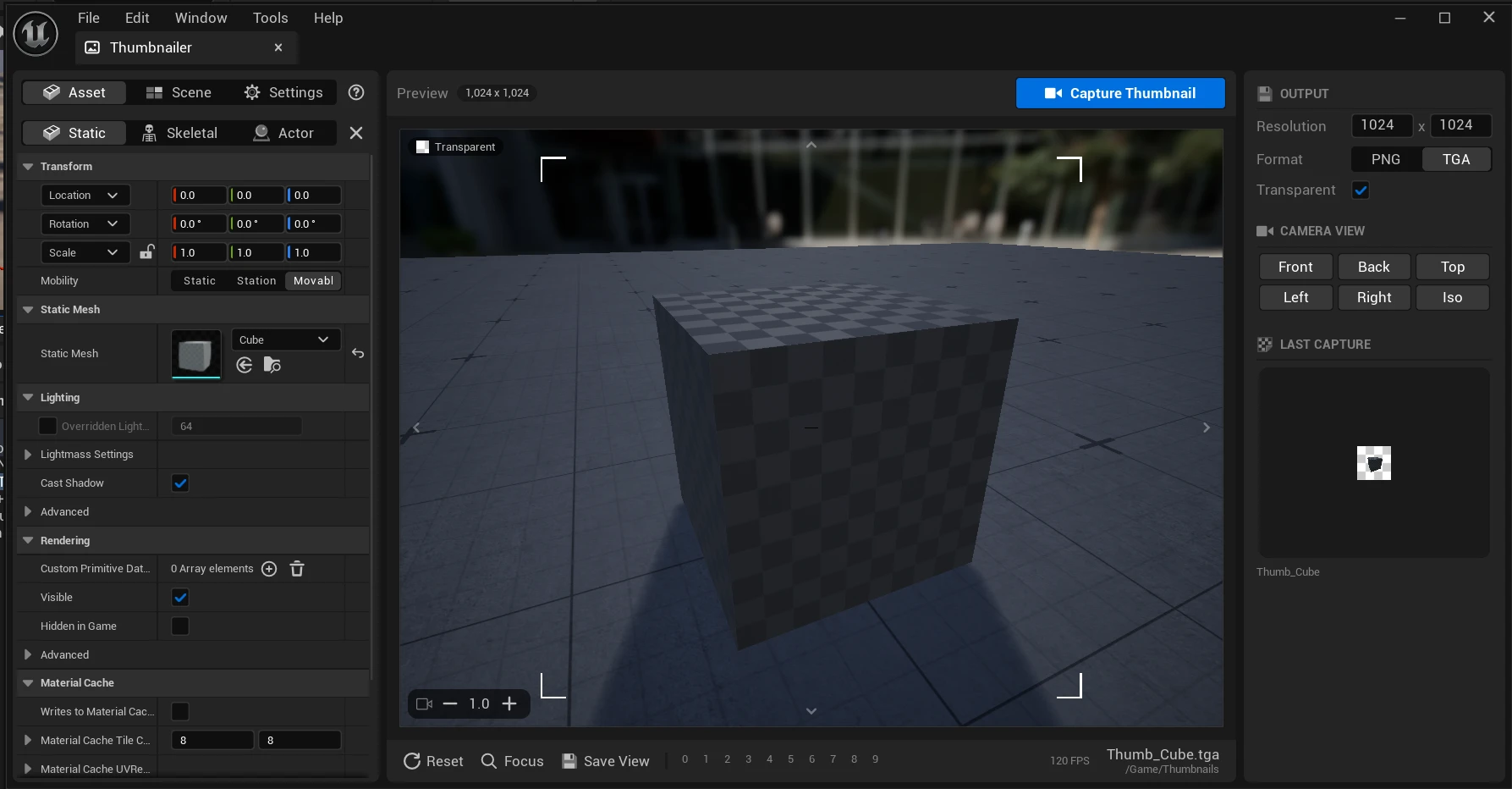
The result
- The thumbnail is imported as a texture in
/Game/Thumbnails. The file name is the File Prefix and the asset name, for exampleThumb_Cube. - A notification shows the name of the new texture. Click the name to find it in the Content Browser.
- The capture is shown under Last Capture in the window. Click it to open a larger preview, or use the buttons below it to open the texture, find it in the Content Browser or copy its path.
If a texture with the same name exists, you are asked whether to overwrite it. See Output and Naming to change the folder, the name and the overwrite behavior.
tip
The X button next to the asset types clears the static mesh, skeletal mesh and actor selections.