Introduction
The Thumbnailer Plugin
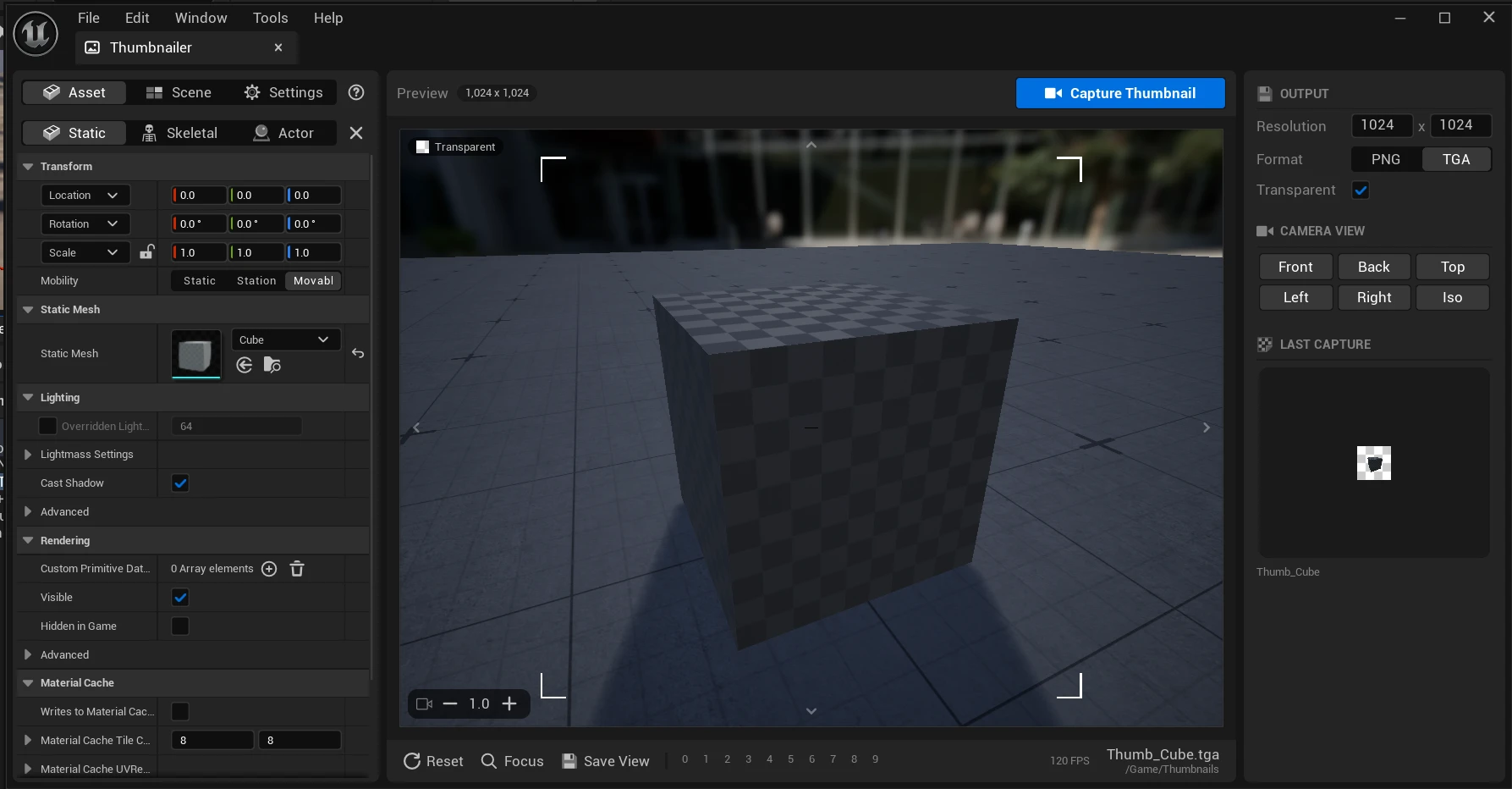
Thumbnailer creates thumbnails and icons for your games and projects inside the Unreal Engine editor. Pick a static mesh, skeletal mesh or actor, frame it in the preview, and click Capture Thumbnail. The capture is imported straight into your project as a texture, ready to use in your UI.
Features
- Capture static meshes, skeletal meshes and actor Blueprints. Open them from the Content Browser with Create Thumbnail. See Capturing a Thumbnail.
- Transparent backgrounds, so the thumbnail can be placed on any UI. See Transparent Thumbnails.
- Any resolution, saved as PNG or TGA and imported as a texture with UI-friendly settings. See Output and Naming.
- Camera views and bookmarks. Frame the asset from the front, back, sides, top or an isometric angle with one click, and save up to ten camera positions on the number keys. See Camera and Framing.
- Perspective or orthographic camera, with an adjustable field of view.
- A customizable preview scene: lighting, environment, floor and post processing. See Preview Scene.
- Framing aids in the preview: a crosshair, frame corners, grid and axes.
- Clean captures. Anti-aliasing, auto exposure, motion blur and screen space reflections can be turned off while capturing, and editor billboards are hidden.
- Last Capture preview in the window, with a larger preview and buttons to open, find and copy the texture.
Requirements
| Unreal Engine | 5.4 to 5.8 |
| Editor platforms | Windows, Mac, Linux |
| Runtime | Editor only. Nothing from the plugin is included in a packaged game, only the textures it created. |
Older engine versions
Updates and new features are only released for Unreal Engine 5.4 and newer. Unreal Engine 4.27 to 5.3 use an earlier version of the plugin, which can still be downloaded from Fab but is no longer updated. The earlier version has a different Thumbnailer window, so parts of this documentation don't apply to it.